
How to add clothes to your Curated account
What is a digital closet, and why is it worth having?
A digital closet is a visual record of your clothes, organised by category. It lets you compare pieces, save outfits and plan what to wear without taking everything out of your wardrobe. You can build it gradually, starting with the clothes you use most.
Good to know
- Start with the clothes you wear most. You can add the rest later.
Step by step
Find the + button
From the home screen or your Wardrobe, tap the round + button in the bottom corner.
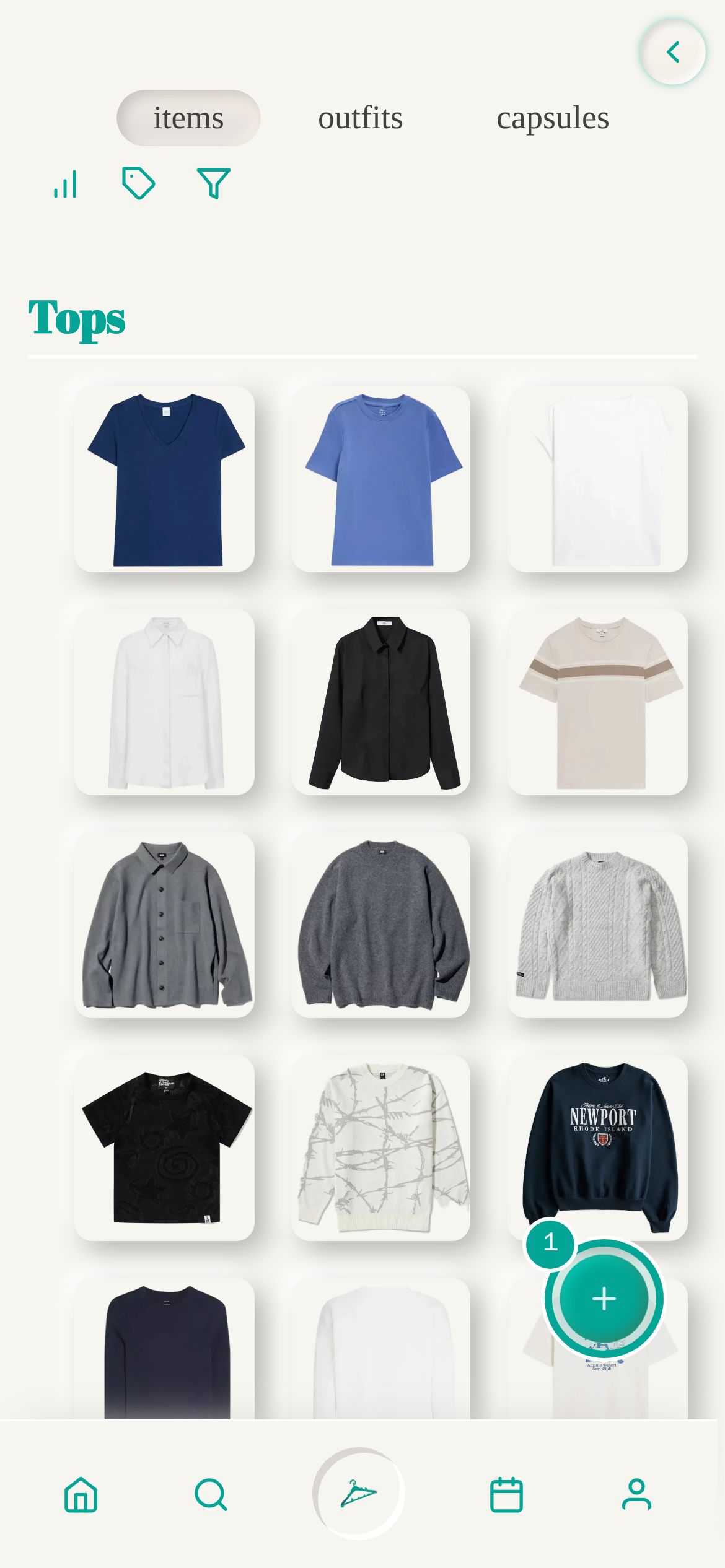
Choose add clothes
A small menu will appear. Tap add clothes, which sits above create outfit and create post.
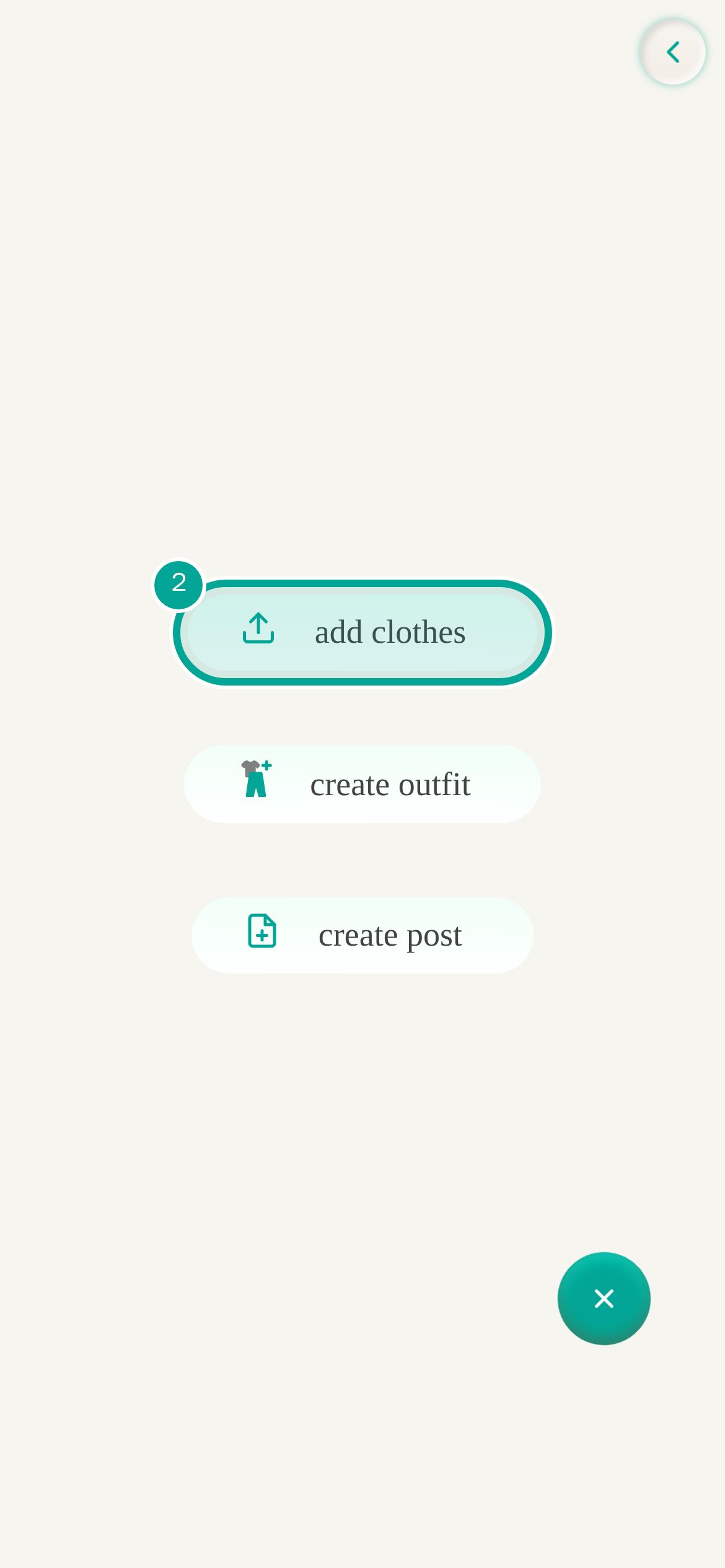
Choose how you'd like to add them
You'll now see Add to your closet, with a few ways to bring your clothes in. Each one is described below, so you can pick whichever suits the piece in front of you. If you're on desktop you can use the Chrome Extension to add your clothes instead.
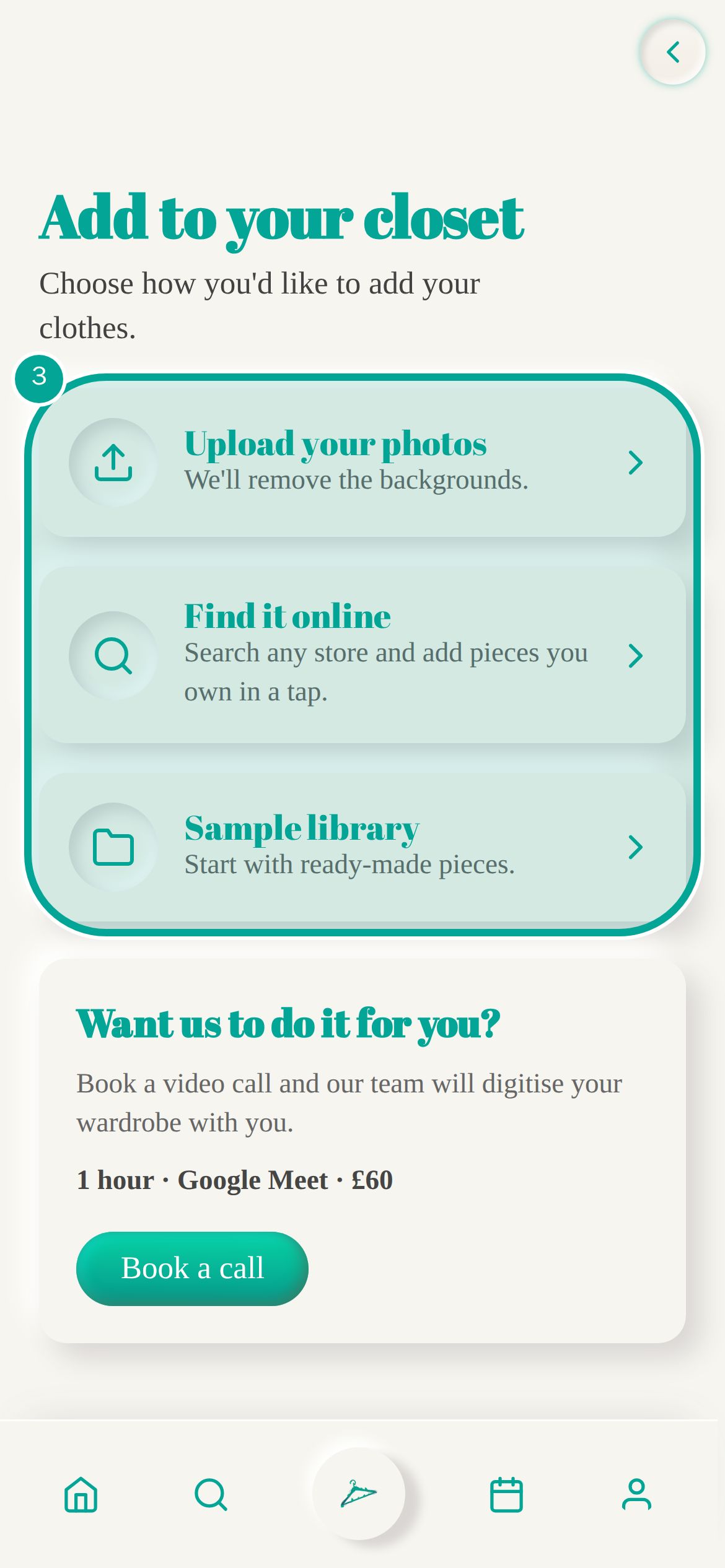


The ways to add your clothes
Method 1: Chrome extension (on a computer)
The browser extension lets you save product photos from the internet on your computer. Choose an image and open it in Curated to check the details before adding it to your wardrobe.
- Install the Curated extension in Chrome browser.
- Browse for any clothes you have in mind or in your wardrobe and find the piece you’d like to add.
- Right-click the photo of the piece and choose Add to Curated Closet.
- Curated opens in a new tab with your photo ready. Check the category, add any tags, and tap upload. We’ll fill in the price when we can find it on the page.
If you’re not logged in, we’ll ask you to log in first and then bring you straight back to your photo.
Method 2: Find it online (on iPhone and Android)
Find it online is our in-app screenshot tool, built into the iPhone and Android app. If you’ve bought something online, there’s no need to photograph it again: you search for the piece, or paste a link to it, and we gather the product photos for you. If none of them looks quite right, you can crop a screenshot of the page instead.
- Open Find it online on the Add to your closet screen.
- Search for the item, or paste a link to the product.
- Open the product page and tap + Add to closet at the bottom.
- Choose the photo you like best, or crop the screenshot, and tap Add to closet. If you’d like to keep shopping around, Add & keep browsing saves the piece and lets you carry on.
- When you’re ready, tap Review to check the details, then upload. We’ll fill in the brand and price where the page has them.


Method 3: Upload your photos
Upload photos of clothes you own, individually or several at once. Curated removes the background from each image.
- On Add to your closet, choose Upload your photos and select your photos.
- Give Processing Images a moment to finish.
- Tap through the photos along the bottom and check the category for each piece. Tags, price and brand are optional.
- Tap upload, and your clothes will appear in your Wardrobe shortly afterwards.


If a photo turns out creased, dark or a little shadowy, Enhance with AI can recreate it as a clean, product-style image. AI Enhance is a Curated Pro tool, and every account receives some free credits so you can try it and see whether you like the result. It’s available while you’re adding a piece, before you tap upload, so check the image before finishing the upload.

Method 4: Sample library
The Sample library contains ready-made pieces shared by the Curated community. You can use a similar item to represent a basic you own, such as a plain white T-shirt, when you do not have a photo.
- On Add to your closet, choose Sample library.
- Browse the pieces by category. You can switch between the male, female and show all collections.
- Tap a piece to add it to your closet. It will say added! once it’s in.
- Tap done when you’ve finished. Each piece is already in its category in your Wardrobe.


Common questions
Which way is best for adding my clothes?
Use the Chrome extension on a computer or Find it online on your phone to save product photos from websites. Upload your own photos for pieces you cannot find online, or use the Sample library for similar basics. You can use a different method for each item.
What if the background isn’t removed quite right?
You can correct the cut-out before tapping upload. The first icon beside the photo opens the editor, where erase removes anything unwanted and restore brings back any part of the clothing that went missing. Once it looks right, tap Save.
Can I change a photo after I’ve uploaded it?
You cannot replace an uploaded photo directly. You can delete the piece and add it again with the photo you’d prefer.
What if a photo doesn’t upload?
Try uploading the photo on its own to check whether the problem affects that file.
I chose the wrong category. Do I need to add the piece again?
Not at all. You can change the category whenever you like, without adding the photo again.
Checked against Curated 10.7 on 1 November 2026. About the browser extension