
How to edit or delete an item in Curated
Good to know
- Every piece needs a category before it can be saved.
- Deleting an item does not delete the outfits it appeared in.
- Prices are saved as whole numbers, without decimal places.
Step by step
Open the item
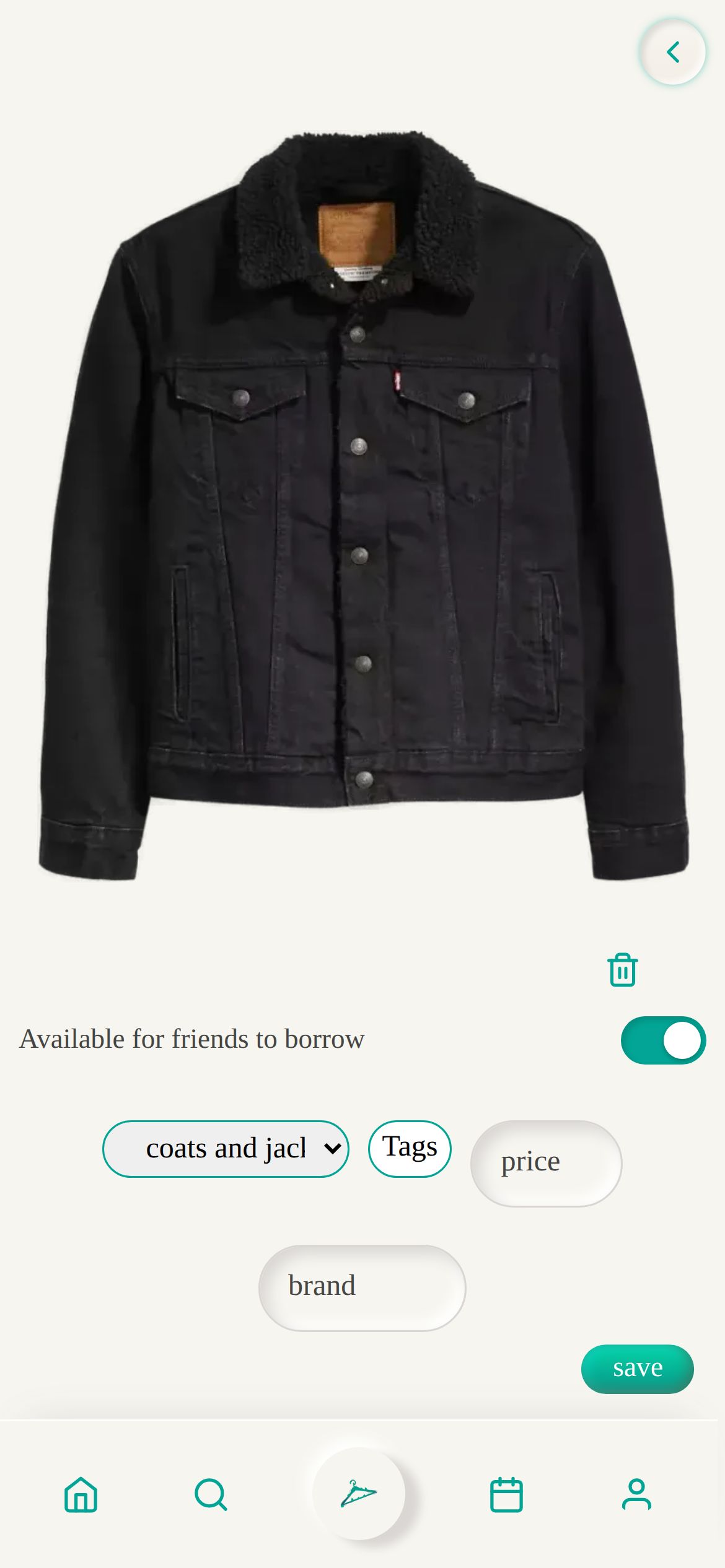
Tap Wardrobe (the hanger icon), then choose the item you want to update or remove.
Change the details
Update the category, add tags through Tags, or enter a price or brand.
Save your changes
Tap save at the bottom of the screen.
Delete an item
To remove the item permanently, tap the bin icon. When Delete item permanently? appears, tap yes to confirm.

Common questions
How do I mark something as in the wash or lent out?
Open the item and tap Tags. Choose the tag that describes where it is or what needs doing:
- in the wash, at dry cleaners, lent and at tailors
- to be repaired, to be washed and to be ironed/steamed
Tap save to keep the change. These tags help you keep track of clothes that are in your wardrobe but not ready to wear.
How do I delete several pieces at once?
Press and hold an item, or right-click it on a computer, to start selecting. Select the other items you want to remove, then tap the bin icon in the bottom bar. Tap yes to confirm that you want to delete the selected items.
How do I replace a photo?
To use a different photo, delete the item and add it again with the new image.
Checked against Curated 10.7 on 9 November 2026.