
How to make an outfit collage in Curated
What is an outfit collage?
A collage is a board where your outfit's pieces sit together, and you can move, resize and crop them until they sit the way they would on you. For planning, that's all you need. It isn't a separate thing from the outfit, either. Save it, and that's how the outfit looks under Wardrobe.
Good to know
- Along the left of the board, undo, redo and reset let you step back or start again. reset asks Reset Collage? first, and it clears the background as well as your pieces.
- cancel leaves the collage without saving, and it doesn't ask first, so tap save when you're happy.
- You can turn your own photo into a sticker, and Curated cuts it out for you.
- Whichever piece, sticker or line you tap comes to the front, so layering is just a matter of tapping.
Step by step
Before you start:
- The collage opens when you create an outfit, or when you tap the pencil icon on a saved one. How to create an outfit in Curated
Arrange your pieces: move one
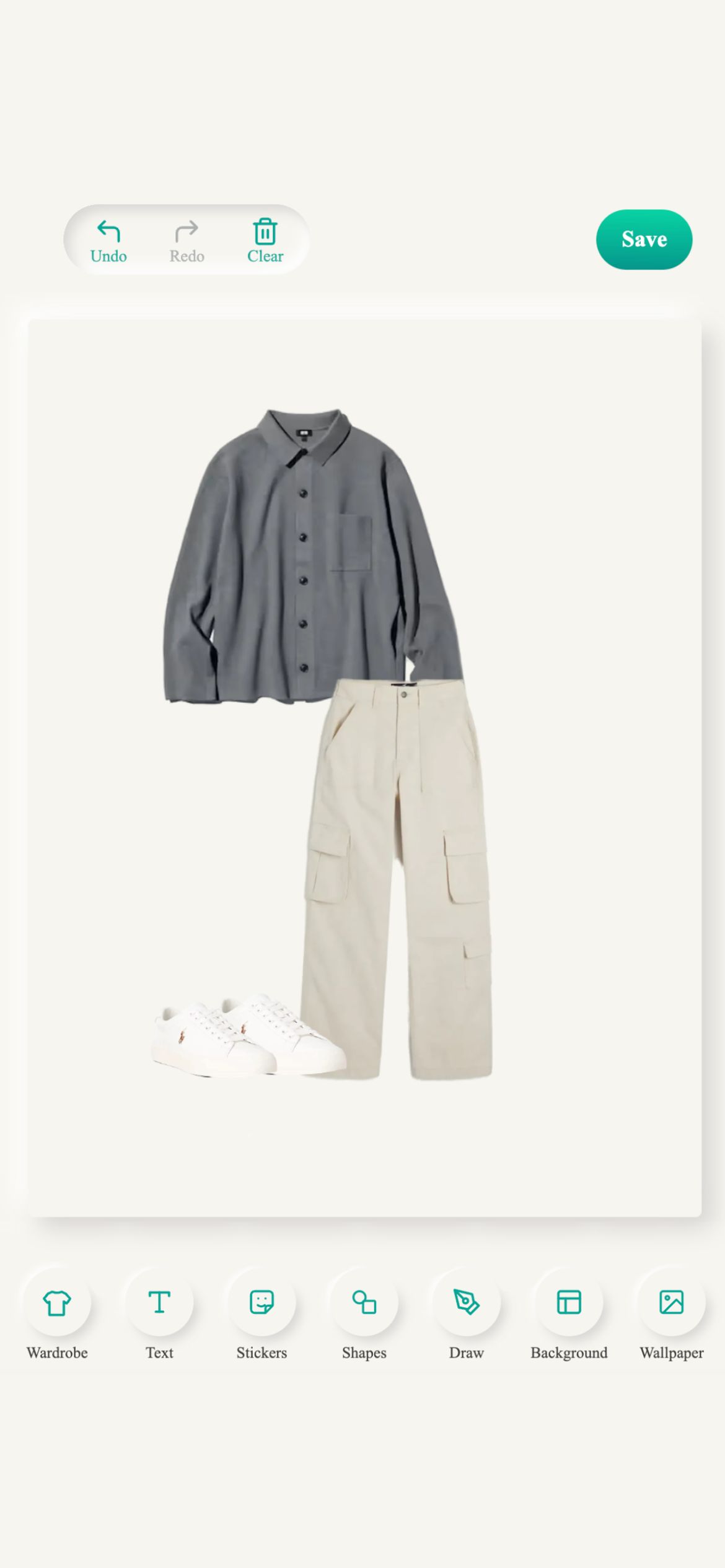
Drag a piece to where you'd like it on the board.
Arrange your pieces: resize or crop
Tap a piece, then drag a corner handle to make it bigger or smaller, keeping its shape. Drag a handle in the middle of a side to crop it.
Arrange your pieces: remove one
Tap the piece, and a bin icon appears beside it. Tap the bin to take the piece off the collage.
Add more of your clothes: tap wardrobe
If you'd like more pieces, tap wardrobe in the bottom toolbar. It's worth doing this first, because adding pieces clears your undo history.
Add more of your clothes: choose and add
Tick the pieces you'd like and tap Add Items. They land small in the middle of the board, ready to move. Cancel closes the picker without adding anything.
Add a background: open background
Tap background, and the Choose Background sheet opens.
Add a background: pick one
Choose a colour, a gradient or a pattern, such as 🌊 Ocean or 🎉 Confetti. None gives you a clear board again.
Use your own photo as wallpaper: add it
In the same sheet, tap Add wallpaper and choose a photo. The button then reads Change wallpaper.
Use your own photo as wallpaper: move it if you like
Wallpaper starts out locked, so it stays put while you work on top of it. Tap Unlock if you'd like to move or resize it. Lock puts it back, and Remove takes it off.
Add a sticker: open Stickers
Tap Stickers. The Add Stickers & Shapes sheet opens with Shapes, My stickers and Emoji.
Add a sticker: pick an emoji
Under Emoji, choose a pack such as 🎉 Party, then tap an emoji to put it on the board.
Add a shape
Under Shapes, tap the circle, square, triangle or star. Tap the shape on the board and the Shape colour panel lets you change its colour. Tap ✓ when you're done.
Make a sticker from your own photo: tap the plus
Under My stickers, tap the + beside custom stickers and choose a photo. Curated cuts the sticker out for you while removing background… shows.
Make a sticker from your own photo: place it
Tap your new sticker in the list to put it on the board. It's saved under My stickers, so you can use it again on other outfits.
Change a sticker's border
Tap a sticker on the board and the Sticker border panel opens. Drag Width to make the white border thinner or thicker, then tap ✓.
Add text: tap Text
Tap Text. A text box reading Tap to edit appears in the middle, with the Text panel open.
Add text: type your words
Type in the box that says Type your text.
Add text: style it
Choose a Font and a Size and Color, and turn Shadow or Outline on or off under Effects. Tap ✓ when you're done.
Draw: tap Draw
Tap Draw, and drawing mode switches on while its panel is open.
Draw: choose your brush
Choose Pen, Highlighter or Chisel, then a size and a colour.
Draw: draw on the board
Draw with your finger, then tap ✓ when you're done.
Save your collage
Tap save. The button reads saving... for a moment while your outfit is stored.

Common questions
How do I share my outfit collage as a fit check?
Open Wardrobe, tap the outfits tab, then tap the outfit to open its page. Tap share as a fit check and Curated builds a story-sized picture that asks friends to rate your outfit from 1 to 10. When the picture appears, tap share to story. On a phone, you then choose the app to share to. On a computer, the picture downloads and your invite link is copied instead, ready to add to your story.
How do I post my collage in Curated?
In the outfits tab, press and hold the outfit to tick it. Make sure it’s the only one ticked, then tap make post in the bar to start a post from it. You can also post straight after saving if you made the outfit from ticked pieces. There’s more in How to post to Explore in Curated.
Why won’t my collage save?
If you see “Too much detail to save - remove some drawings or stickers”, the collage has more on it than Curated can save. Remove some drawings or stickers, then tap save again.
How do I remove a line I’ve drawn?
Tap undo to take it back. Or close the Draw panel with ✓, tap the line, then tap the bin beside it.
How do I change a sticker’s white border?
Tap the sticker on the board and the Sticker border panel opens. Width goes from no border to a thick one, and it works on emoji stickers too.
What’s the difference between the bin and the × on a sticker?
The bin beside a sticker on the board only removes it from this collage. The × in the My stickers list permanently deletes the saved sticker without asking for confirmation.
Why did my sticker keep its background?
The cut-out tends to work best with a plainer background. A busy background can make the edges harder to detect. You can try again with a different photo, and if you’d like to get rid of the first sticker, the × in My stickers deletes it.
Can I undo a reset?
Yes. reset asks Reset Collage? and tells you that all items and customisations will be removed. If you tap Yes, Reset, undo brings everything back, so long as you haven’t added pieces from wardrobe since, as that clears the undo history. Cancel closes the question and changes nothing.
Checked against Curated 10.7 on 1 November 2026.