
How to use the AI outfit generator in Curated
What is the AI outfit generator?
Need a little outfit inspiration? Our AI outfit generator takes the guesswork out of getting dressed by suggesting outfit combinations using clothes you already own!
Good to know
- We suggests adding a variety of clothing items to your digital closet before using the AI outfit generator so that there's a few items to create outfit combinations with.
- Nothing is kept until you tap Save Outfit or Save all, so you can scroll past as many ideas as you like. Saved ones go under Wardrobe, then outfits, alongside the outfits you've made yourself.
- You don't have to use your entire closet. Pieces can be left out with the ×, or you can hand it just a few pieces from your Wardrobe and see what it makes of them.
- Winter Mode adds in layers such as coats and knitwear
Step by step
Way in 1, from the Home screen: tap Generate my outfits
On Home, look for the card headed AI outfit generator and tap Generate my outfits. It opens with all of your clothes ready to use.
Way in 2, from create outfit: tap the plus button
Tap the plus button, and a small menu opens over the screen.
Way in 2: choose create outfit
Tap create outfit, and the outfit brainstormer opens.
Way in 2: tap Try the AI outfit generator
At the top, tap Try the AI outfit generator. It opens with all of your clothes ready to use.
Way in 3, with just a few pieces: tick them in Wardrobe
Open Wardrobe and stay on the items tab. Press and hold a piece until it's ticked (on a computer, right-click it), then tap the others you'd like to include.
Way in 3: tap AI
In the round buttons along the bottom, tap AI. It opens with only the pieces you ticked.
Check which pieces it will use
You'll see how many items it will use. Tap the × on any piece you'd like to leave out. That only leaves it out of this run, and nothing is deleted from your closet.
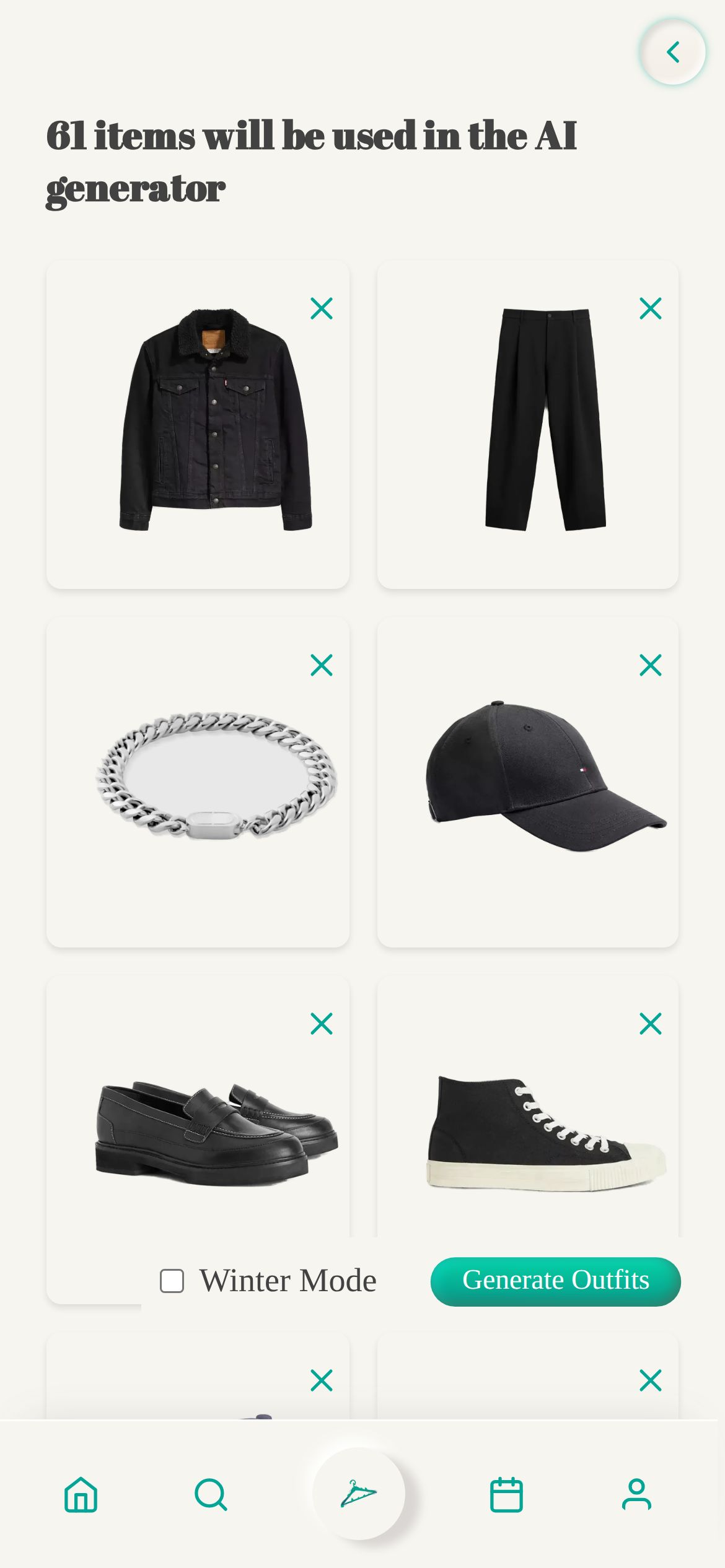
Choose Winter Mode
Tick Winter Mode if you'd like an outer layer in your ideas. Leave it unticked for outfits without one.
Generate
Tap Generate Outfits. It reads Generating... while it works, then your ideas appear.
Save the ones you like
Under an idea you'd wear, tap Save Outfit. The button changes to ✓ Saved - View, and tapping it opens the saved outfit.
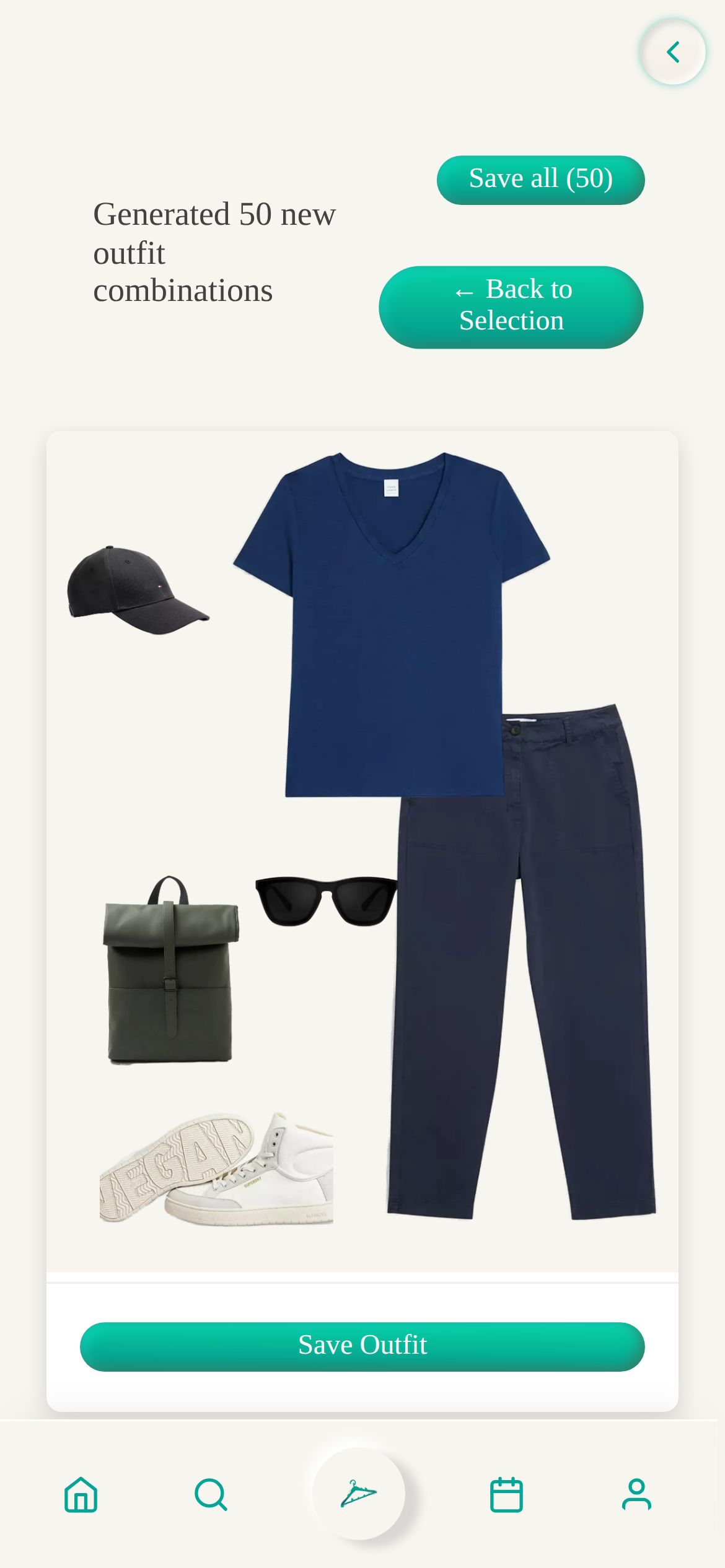
Or save them all
If you'd like every idea, tap Save all (N) at the top of the results instead, and they're all saved in one go.
See more ideas
Scroll down and tap Load More to see the next ideas. It shows how many remain.


Common questions
Should I use the outfit generator or the outfit brainstormer?
The generator suggests whole outfits for you; the brainstormer is where you put one together yourself. If you’ve no idea what to wear, the generator is the quicker start. If you’ve got a piece in mind and want to see what goes with it, the brainstormer’s rows let you try things one at a time. You can use either method at any time. There’s more on how to create an outfit in Curated.
Can the outfit generator use just some of my clothes?
Yes, in two ways. The × on any piece before you generate leaves it out, without removing it from your wardrobe. Or you can start from the pieces you do want: in your Wardrobe, press and hold a piece (or right-click on a computer) to start a selection, and once you’ve ticked the others, AI in the bar at the bottom sends just those pieces to the generator.
How do I get different outfit ideas from the generator?
Tap ← Back to Selection, then Generate Outfits again, for a fresh set. Your × removals and your Winter Mode choice are kept, and you can ask as many times as you like. Ideas you’ve already saved are listed under You might already have these in your outfits, with a Compare with the one you saved option, so you don’t end up with the same outfit twice. Any ideas you haven’t saved are replaced by the new set, so it’s worth saving the ones you like first.
Why don’t my jumpers, hoodies or coats appear in the outfit generator?
Outer layers such as jumpers, hoodies, cardigans, blazers and coats only join in when Winter Mode is ticked.
What does “Not enough items for the AI to use” mean?
The generator needs at least 3 pieces to work with, and this message appears when there are only 1 or 2 in the run. If there are none, you’ll see “No items to use” instead. Both come with an Add items button. If you left some pieces out with the ×, going back to the selection and using more of your closet will help. Otherwise, add clothes to your Curated closet and try again.
What does “Generated 0 new outfit combinations” mean?
The generator found no new combinations to show. One reason is that the pieces in play didn’t make a complete outfit, for instance if they’re all tops. Giving the generator more to choose from usually sorts that: putting back any pieces you left out, or adding more of your clothes, then generating again.
The other reason is that every idea is one you’ve already saved. In that case the summary also says how many are already in your outfits, and they’re listed underneath.
Can I change an outfit the generator made?
Yes. Once saved, it’s an ordinary outfit under Wardrobe, then outfits. The pencil icon reopens it as a collage so you can swap, add or move pieces, the copy icon makes a version to change, and the bin deletes it. How to make an outfit collage in Curated goes through the tools.
Checked against Curated 10.7 on 1 November 2026.